

Menu

Cart
A+ A A-
Christos Goulas

Christos Goulas

dotcom logo

Κύπρου 59, Ηγουμενίτσα
Τ.Κ. 46100, Ελλάδα
http://www.dot-com.gr
E-mail: cgoulas@dot-com.gr
URL Ιστότοπου: http://https://www.facebook.com/cgoulas

Botanical Medicine Suite - Update

Every time there is an updated version available, you will be notified upon launching the application. This will enable the 'Update' button which is located on the 'Accessories' tab. 

To be informed about the changes/improvements made between the application's version, you can join the Botanical Medicine Suite Facebook Group

Please ensure that you have set a valid backup destination path before updating the application and that you have a valid backup copy!

The up to date sequence may take some time to complete. Do NOT close any of the pop up windows. In case you encounter any issues regarding this process please contact us.
Διαβάστε περισσότερα...

Botanical Medicine Suite - Backup

The backup procedure is quite simple. Nevertheless, the procedure creates only one backup file of the backend database (where all your data is stored). There are other files(such as the exported PDF files from the application), that it would be wise to backup them manually (copy-paste should be sufficient) often. An external hard drive would seem a good backup solution.

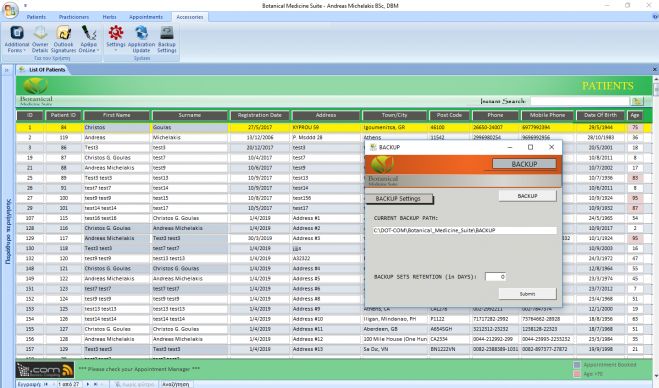
By clicking on the ribbon button 'Accessories' you will see that the 'Backup' button is visible. Once you click on it, the 'Backup' form appears. You can define there a destination path for your backup copies. Once you have that done, you can click on the 'Backup' button to create a backup copy of your database instantly. 

You will notice that there is an option which is described as 'Backup Copies Retention (in Days)'. By default the number of days is set to 7. This takes under consideration the current date and compares it to the creation dates of all your backup copies at the backup destination path which you defined above. Older backup copies than seven (7) days will automatically be erased from your backup destination path. If you change the value for example, to ten (10) days, older backup copies than 10 days compared to the current date will be removed from the backup destination path. This is quite valuable actually because there have been cases where the user has to revert to an older backup or fetch some information from it that is not available in the current or newer copies of the database. 

Notice: Do not rely on the automated backup creation of the application. Be thorough. Please ensure that you have multiple copies of your database in different mediums and if possible in other locations as well.

Note: When some events take place(e.g. when exiting/updating), the application is set to auto create backup copies to the destination path you have set in the 'Backup' form.

Διαβάστε περισσότερα...

Botanical Medicine Suite - Outlook Signatures

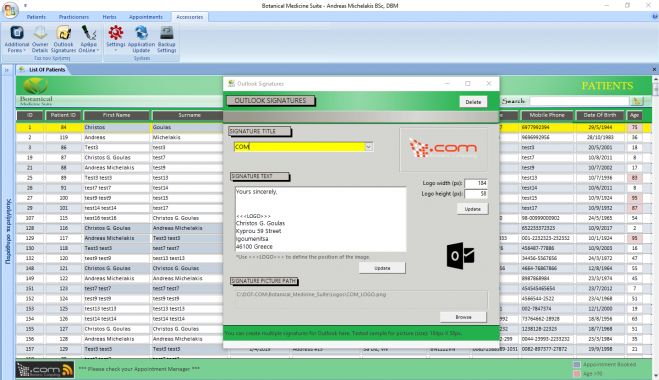
The 'Outlook Signatures' form will allow you to create signatures for your e-mail messages through Outlook. You will have to name each one of your signatures first by keying-in the title of the signature in the corresponding textbox. You can select a picture to attach to each signature by clicking on the 'Browse' button which is located at the bottom of the form. Once you have done that, the picture for your signature will be displayed on the top right area of the form. In the signature textbox, you can write in the details of your signature (i.e. your name, address etc. plus any accompanying text, see the attached picture with this article). 

To display the picture (logo) for your signature in your e-mail message you have to select it's location related to the signature text. You can achieve that by inserting the "<<<LOGO>>>" (without the quotes) text on the location you wish inside the signature text. Once you are done with that, try to send a message through the application. You will see the signature attached. If the picture is too small/large compared to the rest of the signature's text, open the 'Outlook Signatures' form again and 'play' with the logo width and height (in pixels). Good values for those two textboxes would be: width: 184 / height: 58. That depends though on the size of your signature text. 

Once you are done with everything here and have set up as many signatures as you wish, each time you are about to send an e-mail the application will be asking you which signature (through the 'Mail Options' form) you want to attach to your e-mail message.

Διαβάστε περισσότερα...

Botanical Medicine Suite - Appointment Details

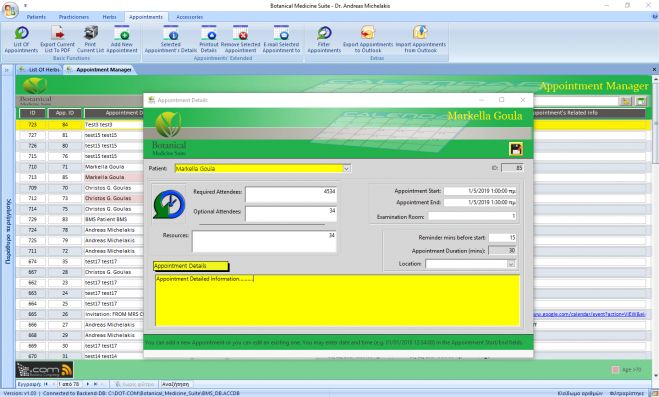
The 'Appointment Details' form allows you to either schedule a new appointment for your patient or display/edit an existing appointment. To view all existing appointments you should use the 'Appointment Manager' form. First, you should select a patient first from the drop-down list and then fill-in the rest of the textboxes. In the Appointment Start/End textboxes you should key-in the dates and the times related to the appointment. 

The details that can be filled-in for each appointment in the 'Appointment Details' form are the following:

  • Patient: Select a patient for the appointment by using the drop-down list
  • Required Attendees: Should there be required attendees for the patient's appointment, fill-in this textbox with details
  • Optional Attendees: Same as above, but for optional attendees
  • Resources
  • Appointment Start: Enter Start Date and Time here for the appointment
  • Appointment End: Enter End Date and Time for the appointment
  • Examination Room: You can enter the examination room here, where the appointment is going to take place
  • Reminder minutes before Start: You can set a reminder for this appointment (enter value in minutes, i.e. 15 denotes 15 minutes)
  • Appointment Duration: Sets the appointment's duration
  • Location: By default, you can select Home Visit if the appointment is going to take place at the patient's place or Clinic visit if the patient is going to visit your clinic
  • Appointment Details: Enriched text, supporting more than 65k characters regarding the appointment

Note: If you use US-date format (mm/dd/yyyy), you should check(enable) this in the 'General Paramaters' form which is located in the Accessories tab, under the 'Settings' button.

Διαβάστε περισσότερα...
Συνδρομή σε αυτήν την τροφοδοσία RSS
elenfrdeites

Log In or Register