

Menu

Cart
A+ A A-
Christos Goulas

Christos Goulas

dotcom logo

Κύπρου 59, Ηγουμενίτσα
Τ.Κ. 46100, Ελλάδα
http://www.dot-com.gr
E-mail: cgoulas@dot-com.gr
URL Ιστότοπου: http://https://www.facebook.com/cgoulas

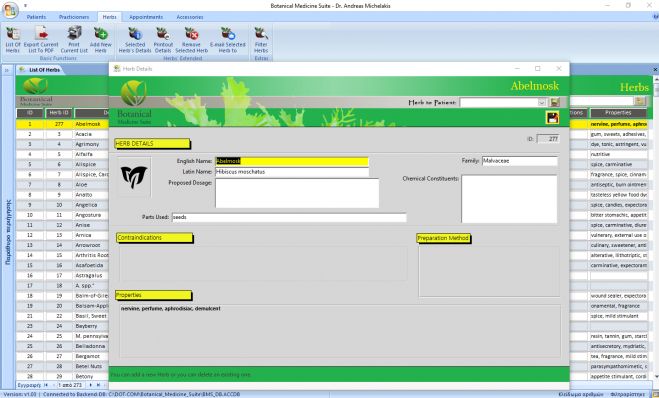
Botanical Medicine Suite - Herb Details

The Herb Details form is rather simple. It can be used to display a selected herb's properties and other information regarding a herb. It can also be used to add a new herb to the database, although very unlikelyDr. Michelakis has made the effort to populate the list of herbs with a vast amount of herbs and their properties in the database.This list is countinuously updating . You can obtain this list by contacting us or Dr. Michelakis himself (at no extra cost)!

More specifically, the textboxes that can be used to fill-in all the required information regarding a herb are the following:

  • The Herb's English Name
  • The Herb's Latin Name
  • The Proposed dosage for this herb
  • The Parts Used to make this herb
  • The Herb's family
  • The Chemical Constituents for this herb
  • The Herb's contraindications (enriched text supported, more than 65k characters)
  • The Herb's properties (enriched text supported, more than 65k characters)
  • The Herb's preparation methods (enriched text supported, more than 65k characters)

Moreover, you can assign this herb as a remedy to a selected patient from the database through this form. Please visit the 'List Of Herbs' article to see what the other options are inside the application regarding the herbs listed in the database.
Διαβάστε περισσότερα...

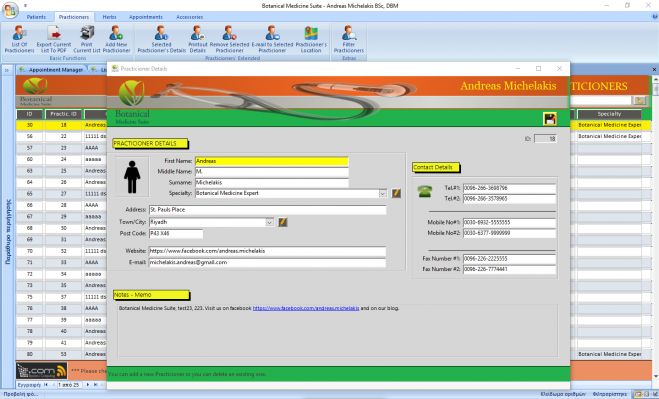
Botanical Medicine Suite - Practicioner Details

You can use the practicioner's details form to either add a new practicioner in the database, or to view/edit a practicioner's details. It's a rather simple form, offering contact information as well a notes field for each practicioner. The practicioners, once they are filed in the database, can be 'assigned' to patients by using the 'Patient Details' form (up to 5 practicioners per patient). 

More specifically, the textboxes that you can fill-in in this form for each herb are the following:

  • First Name
  • Middle Name
  • Surname
  • Specialty (there is already a massive list of specialties included in the database)
  • Address
  • Town/City (almost 200.000 towns/cities including the countries that they belong to are already listed in the database)
  • Post Code
  • Website
  • E-mail Address
  • Telephone Number #1, Telephone Number #2
  • Mobile No #1, Mobile No #2
  • Fax Number #1, Fax Number #2
  • Notes-Memo (over 65000 characters can be keyed-in here, enrich text supported)

Please visit the 'List Of Practicioners' article to see what the other options are inside the application regarding the practicioners listed in the database.

Διαβάστε περισσότερα...

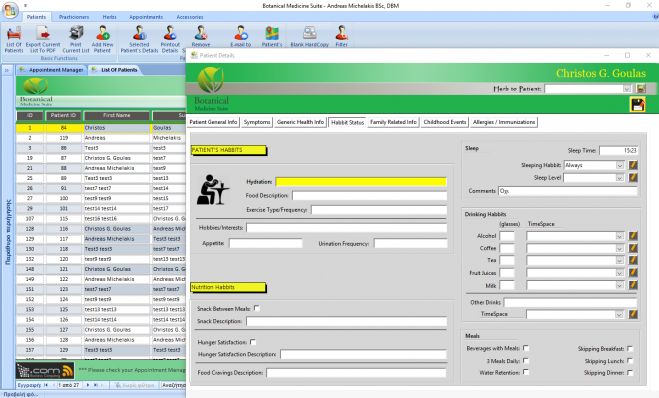
Botanical Medicine Suite - Patient Details

The Patient's Details form is used to maintain all the information required regarding your patients in the database. There is a plethora of details that you can fill in regarding your patients, from their contact details, to their family medical history, symptoms, allergies etc.. On top of that, you can see the remedies that were given to each patient in the past, by clicking the 'H' (history) button. This can be used as a log file for each patient as far as the given remedies are concerned.    

The Patient's Details form consists of seven (7) tabs, namely:

  • Patient General Information: Basic details here, such as your patient's address, phone number, e-mail address, date of birth, height/weight etc. Also, on this tab, you can click on the 'H' button to see the remedies given to this patient or schedule a new appointment for this patient.
  • Symptoms: You can use this tab to file the main reason for your patient's visit and other health issues. Also offers a wide field (up to 65000+ characters - enriched text) where you can key-in detailed information regarding your patient. 
  • Generic Health Information: You can 'assign' here other practicioners that your patient visits. You will have to create a record in the database first for each practicioner. Then you can select them here by using the drop-down list (up to 5 practicioners). On this tab, there is also a wide field (similar to the symptoms above) where you can type in the western medical diagnosis for your patient.
  • Habbit Status: Details about your patient's habbits. From their drinking habbit, sleep habbit, meal habbit, every habbit that can be related to your patient's health can be keyed-in here, in the appropriate textbox. There is also a screenshot related to this tab below.
  • Family Related Information: Family ailments and generic family information can be filled-in here for your patient.
  • Childhood Events: Here, mostly in the form of checkboxes you can check whether your patient as a child suffered from polio, measles, chickenpox, asthma, rubella etc..
  • Allergies/Immunizations: You can choose between a wide list of allergies and immunizations that are related to your patient's medical history here. 

Below, screenshots of the 'Patient Details' form are listed, one picture per tab. You are more than welcome to take a look!

Διαβάστε περισσότερα...

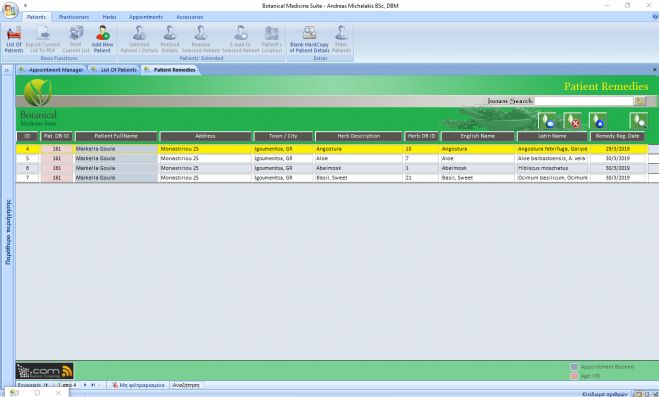
Botanical Medicine Suite - Patient Remedies

The list of remedies for the patients in the database, as any other list in the application, allows you to view all the important information that can be displayed in one list for your patients' remedies. You can add a remedy for one of your patients through the 'Herb Details' form or selecting a herb from the 'Patient Details' form. As you can see in the attached pictures, the screen is separated from top to bottom in three parts. On top, there is the ribbon where the buttons associated with the list are visible and the main part of the screen is occupied by the list itself. The bottom of the screen is covered with the application's notifications plus a memo indicating what are the colourings of the list about.

The selected remedie's record of the list is highlighted. You can use the mouse wheel or the vertical scroll bar to move down between the list's remedies' records. You can sort the list from A-Z and vice versa or from the newest to the oldest values and the other way around, depending on which displayed field's label you decide to click on. For example, if you click on the 'Patient FullName' label, the list will be sorted from A-Z. If you click again, the list will be sorted from Z-A. The same principle applies to the numeric and date values in the list.

To narrow down the list's results, you have two options. A) You can use the 'Instant Search' field which will narrow down the list as you type. B) You can click on the 'Search for Remedies' button on the list itself (not displayed on the ribbon) which in turn will open a new form allowing you to set one or more criteria that can filter the list's results. On the 'Remedies Filter' form you can employ multiple criteria if you want to (herb description, english name, latin name, patient fullname and so on)..

You can use the rest of the ribbon's buttons as follows:

  • Print Current List of Remedies: You can print out the currently displayed list for further use.
  • Remove Remedy from Database: Removes the selected Remedy's record from the database.
  • E-mail this List: Gives you the option to send an e-mail to a Microsoft Outlook contact by asking you if you want to attach a PDF format copy of the currently displayed list in the message. You may also create your own signature for the e-mails sent by the application. See our article named 'Outlook Signatures' for further information regarding that process. Also gives you the possibility to attach the selected patient's PDF details report to the e-mail message.

By double clicking on a remedy's record field (i.e. Patient FullName, Herb Description etc.) the associated details form will open (Patient's Details or Herb's Details).

Διαβάστε περισσότερα...
Συνδρομή σε αυτήν την τροφοδοσία RSS
elenfrdeites

Log In or Register